Quick Start
There are two ways to start. Pick the one that matches what you want to do; each takes about five minutes.
| Path | What you do | You need |
|---|---|---|
| A. Try it in the browser | Compare two governance designs in CADL Explorer and see how the result changes. You do not write CADL. | A web browser |
| B. Write and check with the CLI | Install the cadl command, check and verify an example, then break it and watch the verifier find the contradiction. | Python 3.9 or later, git |
Path A shows what governance design changes; Path B shows the language and the tool. They are independent, so either can come first.
Path A — Try it in the browser (CADL Explorer)
No installation is required if you use CADL Explorer. The steps below describe CADL Explorer v0.5.3 (the hosted app shows its version in the sidebar, below the list of pages).
A-1. Open CADL Explorer
Go to cadl-explorer.streamlit.app. If the hosted app asks you to sign in or is unavailable, run it locally from the cadl-explorer repository:
git clone https://github.com/ertlnagoya/cadl-explorer.git
cd cadl-explorer
pip install -r requirements.txt
streamlit run app.py
The app has four pages, listed at the top of the sidebar:
| Page | What it is for |
|---|---|
| Explorer | Compare two governance designs, A and B (this quick start). |
| Designer | Edit, check and visualise a full CADL model. |
| Contract Lifecycle | Draw the lifecycle state machine and the monitors of a contract from its IR JSON. |
| About & Glossary | What the tool does, the parameter values and the terms. |
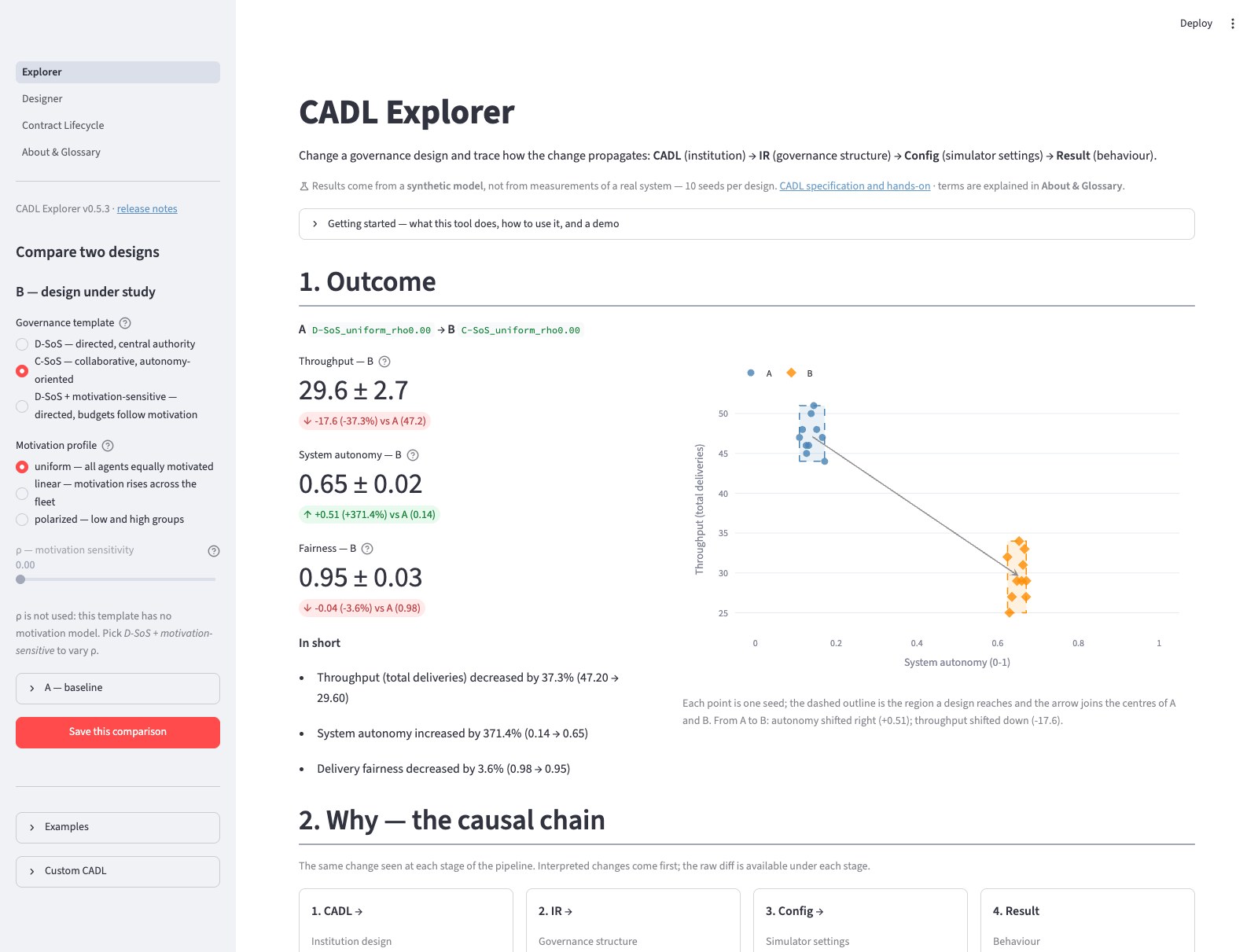
The Explorer page opens first. It compares two designs, A (the baseline) and B (the design under study), and shows the whole CADL → IR → Config → Result chain for both. There is no run button: the page recalculates whenever you change a setting.
A-2. Pick a governance template
Under B — design under study in the sidebar, choose one of:
| Template | Meaning |
|---|---|
| D-SoS | Directed SoS — strong central authority (α=0.3, β=0.7, λ=0.0). |
| C-SoS | Collaborative SoS — autonomy-oriented (α=0.7, β=0.3, λ=0.3). |
| D-SoS + motivation-sensitive | Central authority that adjusts budgets to agent motivation (same α, β, λ as D-SoS). |
Here α is the autonomy level of the agents, β the centralization level,
and λ the exploration probability. These simulator parameters differ
from the per-contract α / β / λ of the language specification; see the
Glossary. Both D-SoS templates set sos_type to
Directed in the YAML that the Explorer shows.
Up to v0.4.1 the D-SoS templates were named A-SoS. They were renamed in v0.5.0 because A-SoS is the abbreviation of Acknowledged SoS. Links shared from older versions still open the same designs.
To change what B is compared against, open A — baseline and choose in
the same way. The baseline starts as D-SoS, uniform, ρ=0.
A-3. Set a motivation profile and ρ
- Motivation profile — how motivation is distributed across agents
(
uniform,linear,polarized). - ρ (motivation sensitivity) — how strongly governance responds to motivation. ρ=0 is motivation-blind; ρ=1 fully couples decisions to motivation. The slider is disabled for templates without a motivation model (D-SoS and C-SoS).
If you would rather start from a ready-made comparison, open Getting started at the top of the page (or Examples in the sidebar) and load one with a button.
A-4. Read the result
The page is divided into four numbered sections:
- Outcome — throughput, autonomy and fairness of A and B, averaged over ten random seeds, with the difference between them.
- Why — the causal chain — the same change seen at each stage (CADL, IR, Config, Result). Interpreted changes come first; the raw diff is available under each stage.
- Explore — three tabs: Effect of ρ, Per-robot view and Scenario.
- Reproduce & export — the content hashes of each stage, the CADL source of A and B, and downloads of B's CADL (YAML), IR (JSON) and simulator config (JSON), plus the A vs B comparison (JSON).
Save this comparison in the sidebar adds the current A/B metrics to the Saved comparisons table at the bottom of the page, which can be downloaded as CSV or JSON. The address in the browser records the current settings, so copying it shares the comparison.
A-5. Optional — paste your own CADL
Expand Custom CADL in the sidebar and paste a CADLMotivationConfig
YAML into Design B (or Design A (baseline)) to use it instead of
the selectors. Use the nested governance: / motivation: layout, the
same as the YAML shown under CADL source of A and B. Minimal example:
name: my-custom-config
sos_type: Directed
governance:
  alpha: 0.3
  beta: 0.7
  lambda: 0.0
motivation:
  agent:
    profile: linear
  governance:
    model: hybrid
    rho: 0.5
The synthetic metrics depend only on sos_type, the agent profile and
rho. Other fields such as alpha, beta and lambda are carried into
the generated IR and config but do not change the results. Only Directed
is modelled separately: any other sos_type is computed as collaborative.
The profiles are uniform, linear and polarized; any other value,
including the custom profile of Appendix C, is rejected with an error. Keys that the format
does not know, or keys written at the wrong level, are ignored without an
error, so keep to the nested layout above.
This YAML is the Explorer's own configuration format, not a full CADL model. To write and check a full CADL model (actors, contracts, lifecycles, monitors), use the Designer page.
Path B — Write and check with the CLI
The reference implementation is the cadl command-line tool, distributed
on PyPI as cadl-lang. The output below is from cadl 0.3.13.
B-1. Install
python3 -m venv .venv
source .venv/bin/activate
pip install cadl-lang
cadl --version
B-2. Get the examples
The examples are in the cadl repository, not in the PyPI package:
git clone https://github.com/ertlnagoya/cadl.git
B-3. Check an example
cadl check parses the file and runs the type checker (declared actors,
references, parameter ranges):
cadl check cadl/examples/robot_delivery.cadl
Type check passed: cadl/examples/robot_delivery.cadl
B-4. Verify it
cadl verify adds the consistency checks: whether each contract's
assumptions and guarantees can hold together (SMT solver), whether every
regime is reachable, and whether a protocol can deadlock.
cadl verify cadl/examples/robot_delivery.cadl
Verifying: cadl/examples/robot_delivery.cadl
  SoS: RobotDeliverySystem

--- Type Check ---
  [PASS] Type check passed

--- SMT Verification ---
  [PASS] Contract 'DELIVERY_SLA' consistency: Assumes and guarantees are jointly satisfiable
  [PASS] Contract 'DELIVERY_SLA' assumptions: Assumptions are satisfiable
  [INFO] Contract 'DELIVERY_SLA' entailment: Guarantees do not follow from the assumptions alone; they are obligations the parties must meet
  ...
--- Deadlock Detection ---
  [PASS] Protocol 'FAILURE_REPLAN' deadlock: No circular dependencies found

Verification PASSED: 8/8 checks passed
[INFO] lines are not failures. The entailment line says that the
guarantees are obligations of the parties, not consequences of the
assumptions.
B-5. Break it and see the verifier object
Copy the example and add an assumption that contradicts an existing one:
cp cadl/examples/robot_delivery.cadl my_delivery.cadl
In my_delivery.cadl, under the contract DELIVERY_SLA:
      assume:
        - "DISPATCHER.is_operational == true"
        - "network_latency <= 200ms"
        - "network_latency > 500ms"      # added: contradicts the line above
cadl verify my_delivery.cadl
  [FAIL] Contract 'DELIVERY_SLA' consistency: Assumes and guarantees are contradictory (unsatisfiable together)
  [FAIL] Contract 'DELIVERY_SLA' assumptions: Assumptions contradict each other; the contract can never apply

Verification FAILED: 7/9 checks passed
The file still passes cadl check: it is well formed, but the contract
can never apply. The total is now 9 checks instead of 8 because the
entailment line changes from [INFO] to [PASS]: contradictory
assumptions imply anything, so that [PASS] is vacuous. Finding this kind of contradiction before deployment is
what the verifier is for. Remove the added line and the file verifies
again.
From here, cadl codegen and cadl sim-gen generate code and simulator
configs from the same file; all commands are listed in the
README of the cadl repository.
Next steps
- To learn by doing → the Hands-on index (includes a three-stage path for beginners).
- Read the Specification Introduction for the language as a whole.
- Chapter 5. Language Specification covers the three-layer syntax.
- Chapter 7. Examples walks through larger worked examples.